Install and configure AbaClient standard installation under Windows
If AbaClient is installed as the standard version, Abacus ERP programs can only be started via the standard web browser by default. To start an Abacus ERP program directly from a desktop shortcut, proceed as follows:
1. Download the latest version of the AbaClient here.
2. Run the downloaded *.msi file.
3. The AbaClient Setup Wizard will start - Click on the "Next" button here.

4. Please read the following licence conditions carefully, agree to them by activating the checkbox "I agree to the terms of the licence agreement" and continue the AbaClient installation process by clicking on the "Next" button


7. If the user account control under Windows 10 is set up accordingly, the following prompt appears: Click on the "Yes" button to continue with the AbaClient installation.


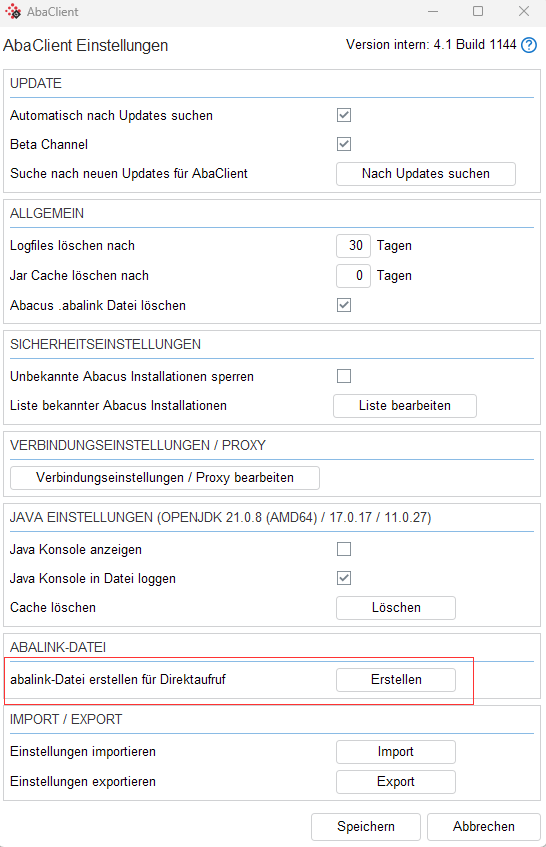
11. The following window opens:
11.1 Please enter the internet address (URL) of your server / installation operator here. HTTPS will then au-tomatically be the standard communication protocol.


11.2 If the Internet address (URL) has a port other than 443 (standard port for HTTPS), please enter this in the Port field.
Example

If the Internet address (URL) does not have a port other than the standard port 443, you do not need to enter anything in the Port field. You can also leave the Start parameters field blank. A URL can be de-fined here which starts an Abacus ERP program directly within an application after login.
12. After entering the information, click on the "Save" button. The following window will now open: You now have the option of defining the storage location for the abalink file. To save the file to your desktop, please click on the Home icon (framed in red), enter a suitable file name and finish by clicking on the "Save" button.

